
STEP 01: Login to your Squarespace account and navigate down to the current version of your website. Click the three dots in the top right corner.

STEP 02: Click “Permissions” to be redirected to the Permissions section of your website. Next, click the black “Invite Contributor” button (you may be prompted to enter an authentication code sent to your email or phone number).
STEP 03: Once the "Invite Contributor” box opens, copy and paste these values into the Name and Email Address fields.
Name: Natalie Fuson
Email Address: natalie@happytypehq.comToggle on the “Administrator” button to allow complete access. This can be changed to “Website Editor” once your website design is complete, but “Administrator” access is often required during the development and design phase. We will not make any changes to your plan or billing or make any purchases on your behalf without your prior consent.
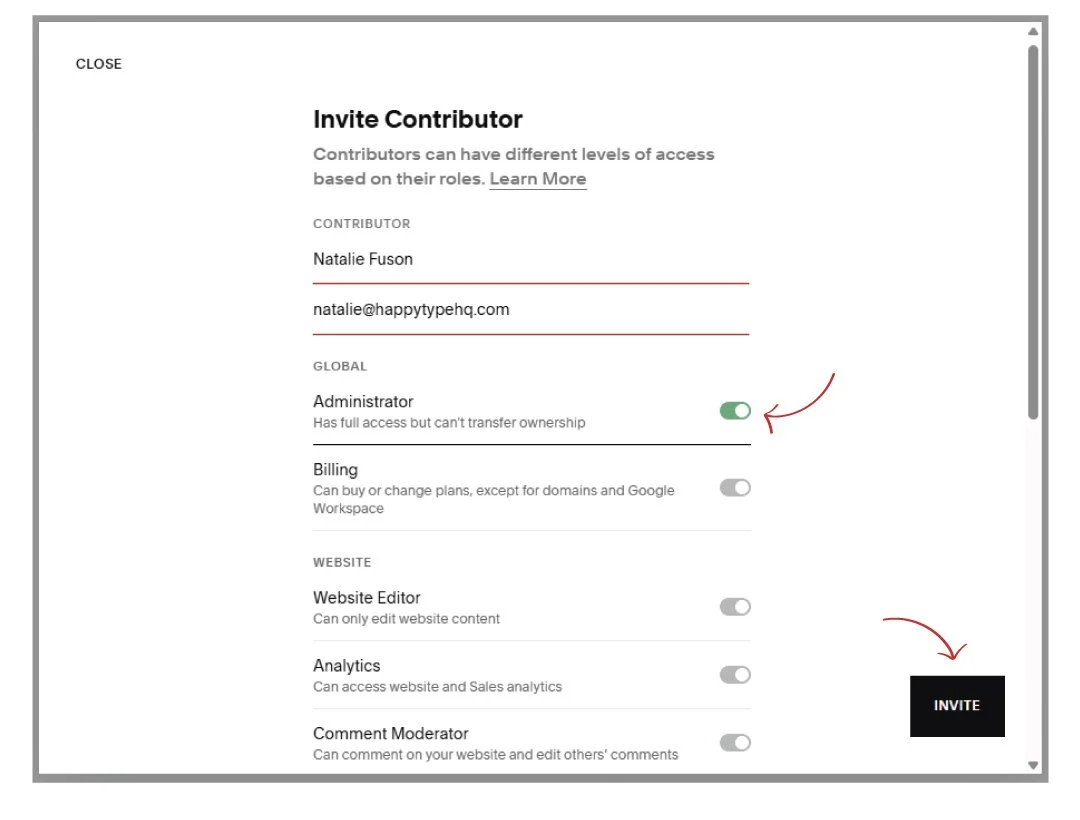
STEP 04: Click the black “Invite” button in the bottom right. Once we receive the invite, we will accept and you will receive a notification from Squarespace that your Contributor request has been accepted.